1
Choose an AI model
Use TRELLIS.2 for detailed geometry and materials, or InstantMesh for a mesh with OBJ export.
Turn an image into a 3D model. Try free AI demos, download your result, and inspect it in your browser.
Free demos have GPU queues and usage limits.
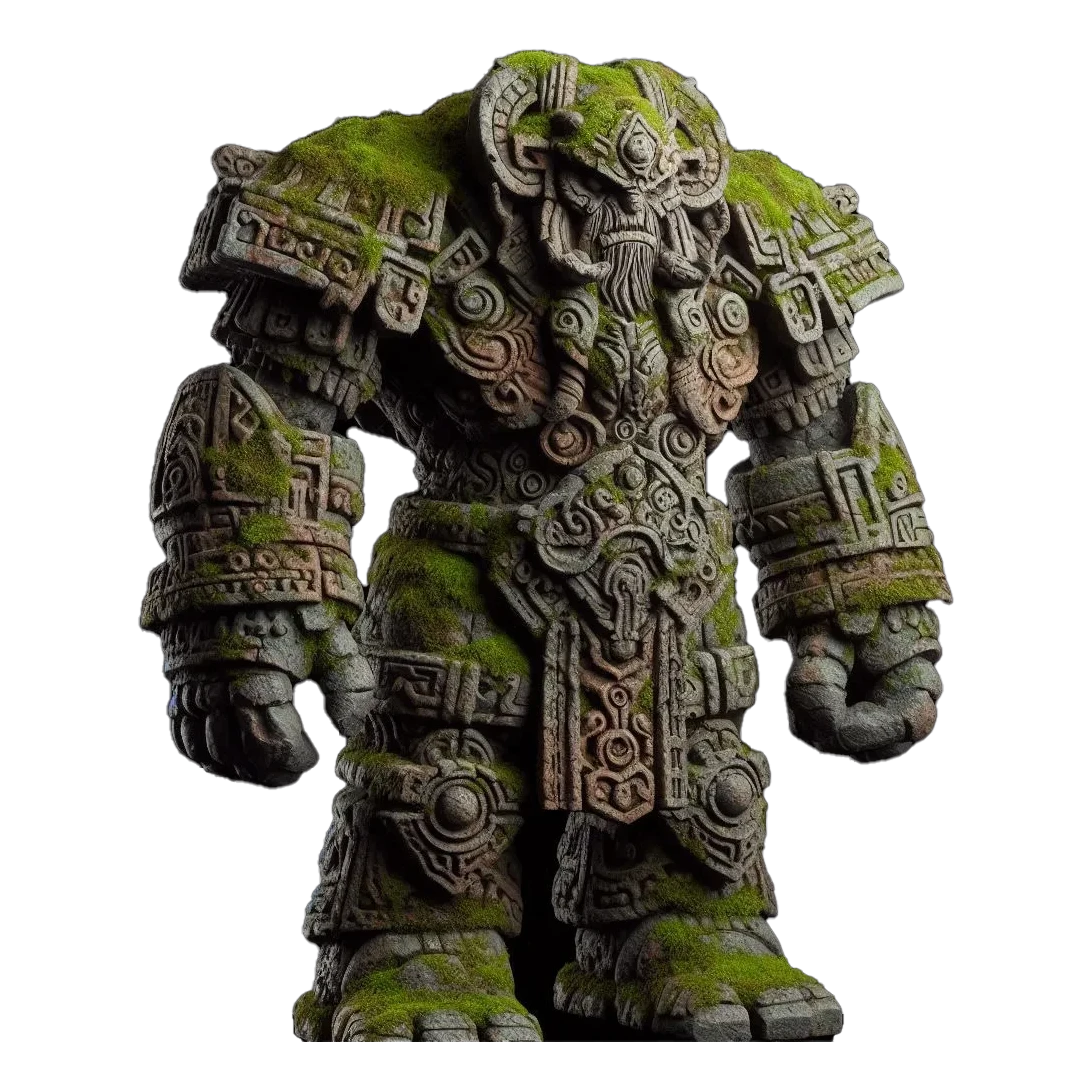
Choose a model and open its free online demo.
Generate a textured 3D asset from one image, with support for physically based materials.
Open the demo, upload a reference image,
then generate and download your 3D model.
Loading the demo connects to Hugging Face. Images you submit are processed by the selected Space. Privacy details
Generate objects from images, reconstruct scenes, capture motion, or explore a 3D world. Open a tool to use its demo and read the input and output guide.
24 tools





No tools match your search.
First-page selection from Hugging Face’s 3D Modeling list, reviewed October 29, 2026. Providers set their own access and usage limits.
Use TRELLIS.2 for detailed geometry and materials, or InstantMesh for a mesh with OBJ export.
Upload one reference image inside the demo. A complete object on a plain background is a useful starting point.
Wait for the model to finish, then download an available format. Open a GLB in our viewer to inspect it.
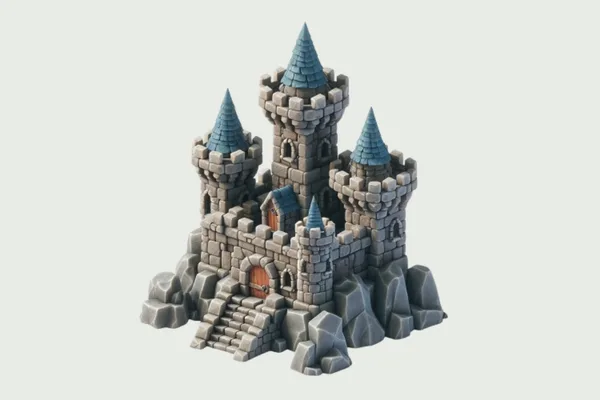
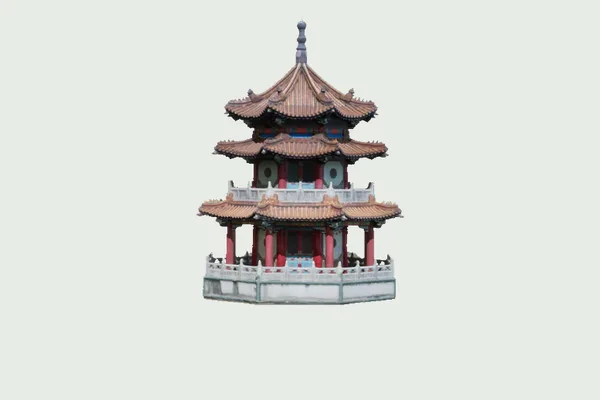
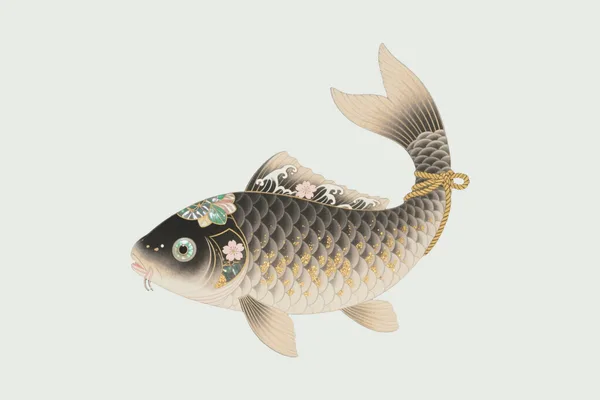
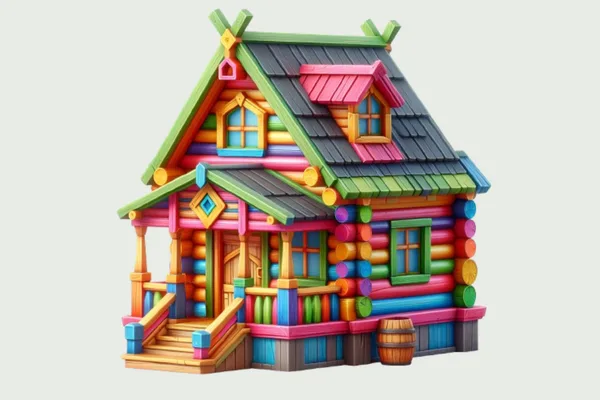
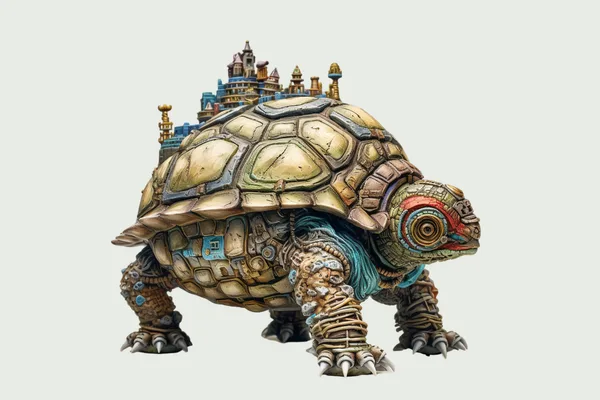
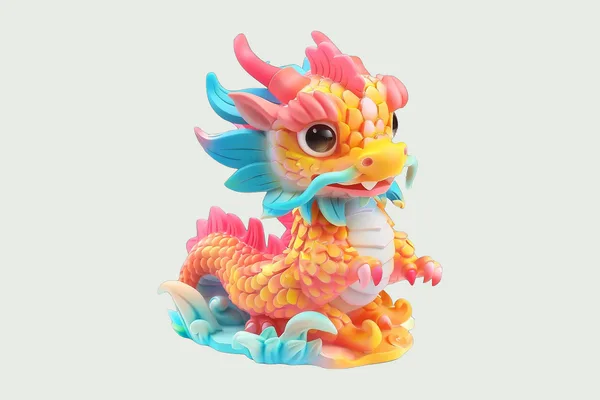
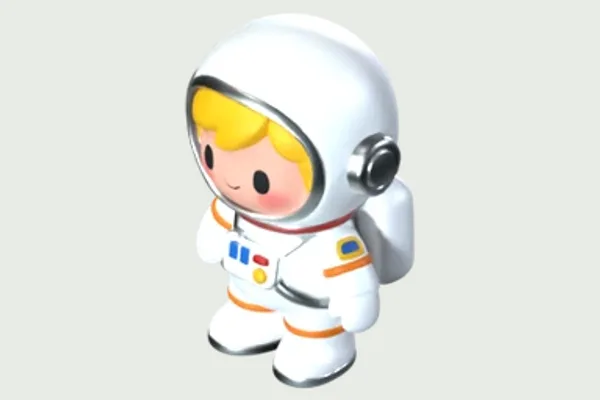
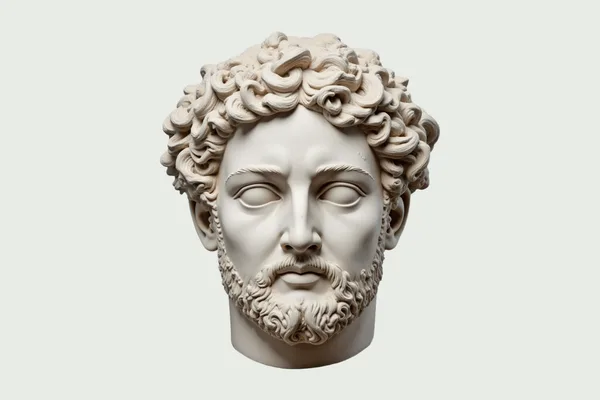
Explore reference images and their corresponding TRELLIS.2 models.
View in 3DGame character
 View in 3D
Sculpture
 View in 3D
Animal
 View in 3D
Decorative object
Official Microsoft examples, not Free3DGen benchmarks. Images above are the inputs; open a model to inspect the 3D output. Sources and preview details
Rotate, zoom, and inspect your 3D model. Change the background, show the grid, or check the wireframe. Your file stays on your device.
Open free GLB Viewer Local file processing. No upload required.AI reconstructs what it can see and estimates what it cannot.
Use a sharp image with one subject. Avoid cropped edges, cluttered backgrounds, and strong motion blur.
A single image does not show the back or underside. Rotate the result and check for missing or distorted geometry.
Generated assets can need mesh cleanup, scale adjustments, and material changes before use in a game or a print.
What to know before
you generate a model.
Free3DGen does not charge for access to these public demos. They run on Hugging Face shared GPU resources, so queues, daily usage limits, and service interruptions can apply. Free access is not unlimited.
You do not need a Free3DGen account. The selected Hugging Face demo may ask you to sign in or may apply different limits depending on your Hugging Face account.
The TRELLIS.2 demo provides GLB export. The InstantMesh demo provides OBJ and GLB outputs. Download controls are inside the selected demo; available options can change when the provider updates it.
Yes. Blender supports GLB and OBJ import. Download your model, then choose File → Import and select glTF 2.0 for a GLB file, or Wavefront (.obj) for an OBJ file. Inspect the mesh, scale, and materials before using it in a project.
Try a clear image containing one complete object against a plain background. If the demo reports a GPU limit, wait for your Hugging Face quota to reset. If the embedded demo does not load, open the original demo or try the other model.
Check the selected model’s license, the demo’s terms, and the rights to your input image. An open-source code or model license does not guarantee that every generated output is cleared for commercial use.
Images submitted to a generator are sent to the selected third-party Hugging Face Space. Files you open in our GLB Viewer are processed locally in your browser and are not uploaded by Free3DGen.